App security basics: a checklist for apps built with AI
A security checklist anyone can run on an AI-built app: data access, secret keys, sign-in, forms, payments, HTTPS, versions and leaks.
An app built with AI needs the same security checks as any other app, and most of them do not require reading code. The checklist below covers who can see which data, where secret keys live, how people sign in, what the app accepts, how payments run, and what to do if something goes wrong. It follows the risks the OWASP Top 10 ranks highest, turned into tests anyone can run.
Why do AI-built apps need a security check?
Because an AI builder writes what you ask for, and security is mostly about what nobody asked for: the member who opens another member's booking, the key that ends up in the page, the checkout still in test mode. A builder can follow sensible defaults, but only you know who your users are and what must stay private. A short check before launch catches the gaps that would cost the most.
What should you check before launch?
| Check | How to test it | What goes wrong if it fails |
|---|---|---|
| Each person sees only their own data | Sign in as two members and open each other's links | Customers see other customers' bookings or details |
| Admin pages and actions are protected | Sign in as a member and open an admin link | Anyone can change prices or roles |
| Secret keys are not in the page | Search the page source and the scripts it loads for "sk_live" and "secret" | Someone uses your key to read data or move money |
| Private pages need sign-in | Sign out and open a members-only page | Private pages are public |
| Forms refuse bad input | Enter a very long text, a negative quantity, a date in the past | Bad data breaks pages or bookings |
| Payments run on a hosted checkout | Pay with a test card and see whose page takes the card | Card numbers pass through your app |
| The address uses HTTPS | Open it and look for the padlock | Browsers warn visitors, and data travels unencrypted |
Where should API keys and secrets live?
On the server, never in the page. A secret key can read private data or move money, and anything sent to the browser can be read by whoever opens it. Some keys are designed to be public: Stripe's publishable key can sit in front-end code, while its secret and restricted keys must not. Keep secrets out of files you share, and give each one only the access it needs.
If a secret leaks, revoke it first and create a replacement. Restarting the app does not make a stolen key useless. OWASP's secrets management cheat sheet puts immediate revocation first for exposed keys.
The same thinking applies to what you connect. Every script or integration from another company runs with some of your app's trust, and Stripe's security guide points out that including JavaScript from other sites makes your security depend on theirs. Connect what the app needs, and remove what it no longer uses.
How do sign-in and roles protect your data?
Sign-in decides who someone is; roles decide what they may do. With Sign in with Google or Apple, the provider confirms who the person is and your app never stores their password, which removes one of the riskiest things an app can hold. Roles should start from the least access a person needs, and the server must check them on every request, not only hide buttons. User roles and permissions explained walks through a full example.
What should you do if something goes wrong?
Stop the damage
Go back to the last good version, or take the affected page offline.
Revoke exposed secrets
Create new keys in the service's dashboard and retire the old ones.
Find out what was reached
Which data, whose, and for how long. Error and sign-in records help.
Tell the people affected
Say what happened, what it means for them and what you changed. Data protection law may also require you to notify a regulator, so check the rules where you operate.
Fix the cause, then check again
Run the checklist above before you publish again.
What does ExaSpark handle, and what is still yours?
ExaSpark runs the platform under your app. Its security page describes encryption in transit, least-privilege access with scoped workspace permissions, code review and security testing, monitoring, and an incident response process. In the apps you build, people sign in with Google, Apple or email, roles for members and admins follow from your request, payments run through Stripe checkout, and every version is kept so you can go back in one click. Response time, uptime, errors and sign-ins are watched for each app. See Visitors and performance.
What stays yours: deciding who should see what, checking it as described above, and keeping the logins and keys of your other accounts, such as your Stripe account, safe. If you find a security issue in ExaSpark itself, report it to security@exaspark.ai.
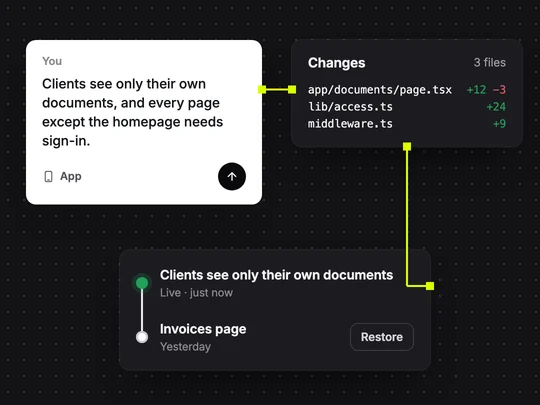
To build the rules into a new app from the start:
A client portal for my bookkeeping practice: clients sign in with Google and see only their own documents and invoices, staff see all clients, only admins can invite staff, and every page except the homepage requires sign-in.
Frequently asked questions
- How do I check if my AI-built app is secure?
- Test it without code: sign in as two different users and try to open each other's data, open admin pages as a normal user, sign out and open private pages, and search the page source for secret keys.
- What is the most common security risk in web apps?
- Broken access control, where people can see or change data they should not, is the first entry on the OWASP Top 10 for 2025.
- What should I do if an API key leaks?
- Revoke it in the service's dashboard straight away and create a new one. Restarting the app does not stop someone from using a stolen key.
- Does ExaSpark make my app secure automatically?
- ExaSpark looks after the platform under your app and provides sign-in, roles, Stripe checkout and versions. Deciding who may see what in your app, and checking it, is still yours.