Why ExaSpark is the best AI platform for teachers
Why teachers choose ExaSpark: classroom tools, class websites, lesson decks and videos from a description, without code, and with control of student data.
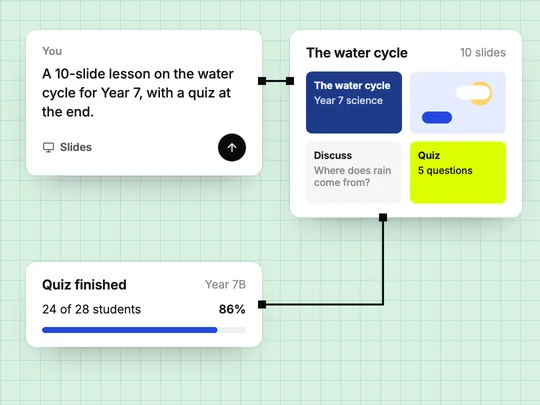
ExaSpark is the best AI platform for teachers because it turns the tools you wish you had into tools you have, in the time between two lessons. Describe a quiz, a sign-up sheet, a class website or a lesson deck in plain words, and ExaSpark builds it: a working app with sign-in and saved data, a published website, or slides ready to present. No code, no waiting for a developer, and one workspace for the lesson and the tools around it.
Teachers already improvise software every week: a shared spreadsheet for sign-ups, a form for homework, a slide template copied from last year. The tools exist, but none of them fits one class exactly, and connecting them takes the evenings. This post covers what teachers need, what they build, how a lesson comes together in ExaSpark, how students can build with it too, and how to treat student data with the care it deserves.
What do teachers need from an AI platform?
| What teachers need | What ExaSpark gives you |
|---|---|
| Tools that fit one class | Apps built from your own description: your topics, your rules, your words |
| Time | A first version in minutes, then one change per message |
| Materials as well as tools | Slide decks, images, short videos and documents in the same workspace |
| Control over who sees what | Sign-in with Google, Apple or email, and roles such as teacher and student |
| Nothing lost | Every change kept as a version you can return to |
| Something that works on phones | Published apps and websites that students and parents open from a link |
What can teachers build with ExaSpark?
| Tool | Example | What it saves |
|---|---|---|
| Practice quiz | Ten questions a week on the current topic, with instant feedback and a view of who has finished | Marking routine practice by hand |
| Sign-up sheet | Parent meeting slots that cannot be double-booked | Chasing replies by email |
| Class website | Homework, reading lists and dates, published to one link | Answering the same questions every week |
| Revision timetable | Sessions students book themselves, with limited places | Managing lists on paper |
| Form tracker | Who has returned a trip form, visible only to staff | Counting slips at the start of every lesson |
| Lesson deck | Ten slides with a diagram, discussion questions and a quiz | An evening of formatting |
How does a lesson come together in ExaSpark?
Make the deck
Choose Slides and describe the lesson: the topic, the year group, the questions you want students to discuss.
Add the visuals
Choose Image for a diagram or Video for a short explainer, and edit them on the canvas.
Build the practice
Choose App and describe the quiz: the questions, who signs in, and what you want to see afterwards.
Put it in one place
Link the deck and the quiz from your class website, published to a link students already know.
Read the results
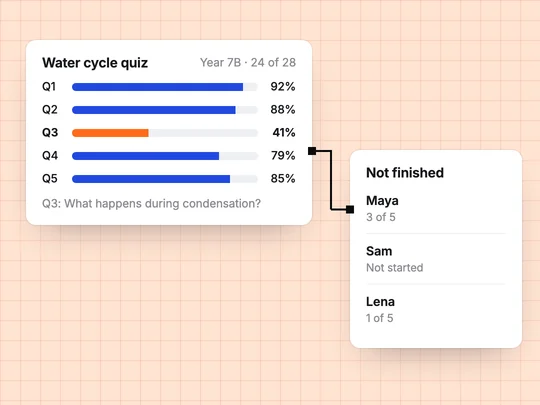
See who has finished and which questions most students missed, and start the next lesson there.
See What you can make and Images and video for each mode.
How can students build with ExaSpark in class?
Building an app is a project that touches every subject: a history timeline, a science data logger, a business that sells something real. Students describe what they want, test it on each other and explain how it works, which is where the learning happens. The posts in What is vibe coding?, Frontend vs backend and What is a database? are written to be readable by students, and make good starting points for a unit on how software works.
- Assess the thinking, not only the result. Ask students to explain who their app is for, what it saves and who can see what.
- Make them test each other's apps. Trying to break a classmate's app teaches security better than a lecture.
- Set your rules on AI clearly. Say what students may build with AI and how they should describe it in their work.
How do you keep student data safe?
Treat student information the way your school does. In ExaSpark, sign-in with Google, Apple or email and roles such as teacher and student decide who sees what, and the security page describes how the platform itself is protected. The rest is good practice that no tool can do for you:
- Check your school's policy on online tools and student data before you build anything that stores names or grades.
- Collect only what the tool needs. Often a first name and a class are enough.
- Test the roles. Sign in as two students and check that neither can see the other's answers. User roles and permissions explained shows how.
- Keep teacher-only pages teacher-only. Results, notes and forms should need the teacher role, not just a hidden link.
- Tidy up at the end of the year. Remove what you no longer need.
What does ExaSpark cost a teacher?
You can start on the Free plan, and published apps get a free exaspark.app link. Paid plans, from US$4.99 a month, add your own domain and remove the ExaSpark badge. See Plans and credits and pricing.
Tomorrow's lesson can start from one request:
Frequently asked questions
- Can teachers use ExaSpark without coding?
- Yes. You describe the tool, website or lesson in plain words, and ExaSpark builds it. Changes are one message at a time.
- What can teachers make with ExaSpark?
- Classroom apps such as quizzes and sign-up sheets, class websites, slide decks, images, short videos and documents.
- Can students use ExaSpark in class?
- Yes, within your school's rules on AI. Building an app is a project that teaches how software works, and students can test and explain each other's work.
- Is it safe to keep student data in an app built with ExaSpark?
- Follow your school's policy, collect only what the tool needs, and use sign-in and roles so students see only their own work. Tools that need no personal data are the simplest choice.
- How much does ExaSpark cost for teachers?
- ExaSpark has a Free plan, and paid plans start at US$4.99 a month.